Documents
Create a Price List
Last Modified Dec 9, 2025
- Navigate to Pricing > Price Lists in the main menu.
- Click Create.
- Enter the price list Name.
- Enable/Disable the list. It will typically start as disabled until it is completed.
- Click on the Save button, or on Discard to reject the updates.
- An empty price list will be displayed. To add new rows in the price list, click on the Create button.
- Select the Currency.
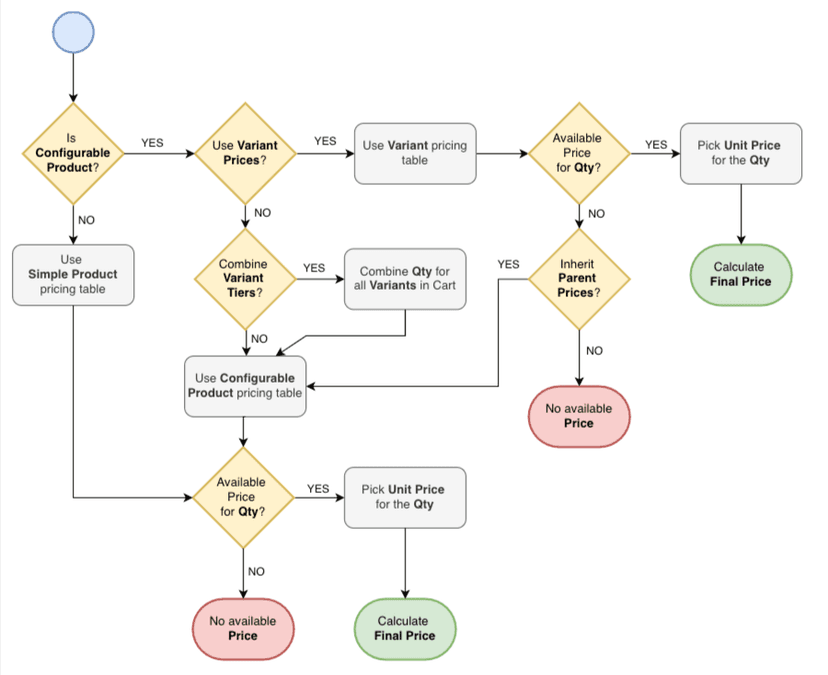
- Enter the Price. The price in this field is the unit price applied to purchases where the quantity of products of this type is equal to or greater than the value specified in the Quantity field.
- Enter the Quantity. The quantity field defines the minimum number of products of this type that must be purchased for the corresponding unit price to be applied. If the number of items in the cart meets or exceeds this value, the discounted or special price from the Price field will be used for the purchase.
- Select the Product using the search box. Main products can be found by SKU or Name; however, variants can only be found by SKU.
- Click Ok to add the price to the table, or Cancel to discard the changes.
- Pricing rows can be edited using the Edit icon.
How prices are defined