Documents
Create a Simple Product
Last Modified Dec 8, 2025
Before creating a Simple Product, it is recommended to have completed the following steps:
- Create the corresponding product Categories.
- Create a Catalog in order to make it available for purchase in the store.
- Create a Pricing List to which the product will be assigned.
To add a new Simple Product:
- Navigate to Taxonomy > Products in the main menu.
- Click Create.
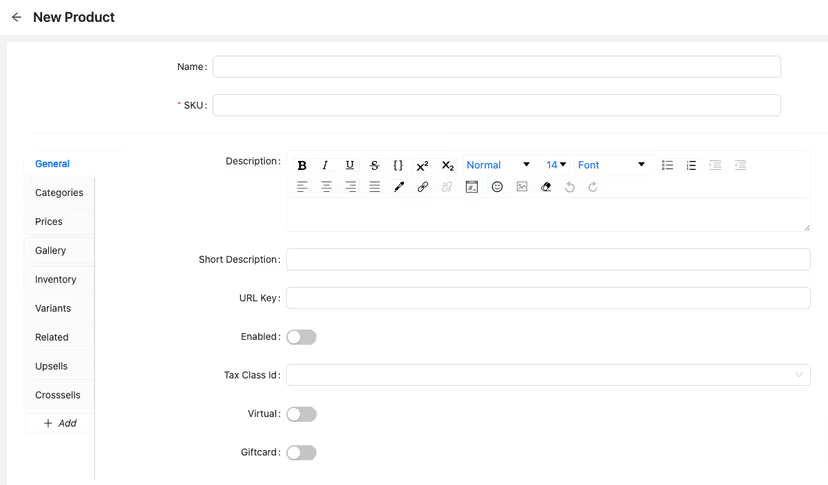
The product details page appears.
- In the General section:
- Enter the product Name and SKU (Stock Keeping Unit: A unique identifier for the product in inventory).
- Enter a Description that will appear on the product view page, using the text styling tools available if needed.
- Enter the Short Description that will appear in the catalog listing.
- Enter a URL Key that is used to build a human-readable URL for the product page in the store.
The URL key must be unique within the site. No two products, categories, or other pages can have the same URL key, as this would cause navigation conflicts. If a URL key that already exists is generated, a numeric suffix will be added to differentiate it (product-name-1, product-name-2).
Only alphanumeric characters (a-z, A-Z, 0-9), hyphens (-), and underscores (_) are allowed.
The URL key should be readable and representative of the content. Irrelevant or redundant words should be avoided.
In the absence of a URL key, the product ID will be used in its place.
- Select the product status: Enabled or Disabled. When disabled, the product is not included in the catalog and is considered to be a draft.
- In the Tax Class Id, select the product tax code that defines the percentage of tax that can be included in the purchase order during the checkout.
Each product must have the related product tax id for proper tax calculation. In terms of product kits, taxes are applied to the product kit and all its kit line items individually.
- Select Virtual if the product is a digital item, available for purchase in the store, which can be instantly delivered via email, web-link or any other digital mean.
- Select Giftcard if the product is a digital voucher available for purchase in the store.
Categories
- In the Categories section:
- Select all the categories from the list that apply to the product.
Prices
- In the Prices section:
To add pricing features to the product, a pricing list must be defined in the corresponding section. - Click on Add. A new row will appear in the pricing table.
- Select the Pricing List and Currency.
- Enter the price Price (corresponding to the selected currency) and Quantity (as integer units).
The entered price reffers to the unit price, and it will be applied to purchases corresponding to the entered quantity or more. If there is a row with a higher quantity, the price for that quantity will be used (only if it is lower). If a higher minimum quantity with a higher price has been entered, the previous price will be used, as it is more advantageous for the consumer.
If there is no row for a quantity of products equal to one, the product will be considered "out of stock" if its inventory is lower than the quantity defined in the price row with the lowest value.
- If the product has variants there will be a set of flags that can be used for configuration:
- Combine Variant Tiers
This option is available only when Variant Prices are not in use. If this option is selected, when making a purchase, the quantities of all product variants will be added together to determine the total quantity of products and apply the price based on the selected minimum price quantity. - Use Variant Prices
This flag determines whether the product prices or the variants prices will be used to define the final price. By using the variant prices, the Combine Variant Tiers option cannot be used. - Inherit Parent Prices
This option has an effect only if the variant prices are used. If the flag is selected, variants that do not have a price will use the main product price. If the flag is set to false, variants that do not have a price won't be available in the catalog.
- Combine Variant Tiers
Gallery
- In the Gallery section:
- Add a new image to the product by clicking Upload and then Click or drag a file to the uploading area.
Support for a single or bulk upload. Strictly prohibited from uploading company data or other banned files.
You can upload a maximum of 50 images in total.
Once the image was uploaded, image data can be edited by clicking on the
Edit icon in the Actions column.
- Set the Role by picking an option:
The default image is the main image displayed for a product on the product detail page. It is the first image users see when they enter the product page, so it should be the most representative or appealing image.
The thumbnail image is a smaller version of the product image used in listings, product galleries, shopping carts, or any other section where a quick and compact view of the product is needed.
To remove the image, click the Delete icon next to it.
Inventory
- In the Inventory section provide the following information:
- Stock Status
The status of the stock for the product. Defaults to Out of Stock.
Possible values: - In Stock: The product ready to be ordered.
- Out of Stock: The product is temporarily not ready to be ordered.
- Discontinued: The product is permanently not ready to be ordered.
- Managed Inventory
Indicates if the quantity in stock of the product is managed by the system. Defaults to yes.
Possible values: - Yes: The product quantity in stock is managed by the system.
- No: The product quantity in stock is managed externally.
- Backorders
Indicates if the product support backorders. That is, if it is possible to order more quantity than the available in stock. Defaults to no.
Possible values: - Yes: The product can be backordered.
- No: The product cannot be backordered.
There is no limit to the number of backorders that customers can place.
- Min. Qty to Order
Indicates the minimum quantity admitted of the product in an order. Defaults to 1. - Max. Qty to Order
Indicates the maximum quantity admitted of the product in an order. If empty, the limit does not apply. - Qty
Indicates the available quantity of the product. Note that this value could be decimal for those products that can be sold by partitionable units. Also this value could be negative in case of using backorders. Defaults to 0. Note that this will be different for configurable products, where the available quantity needs to be managed by variant.
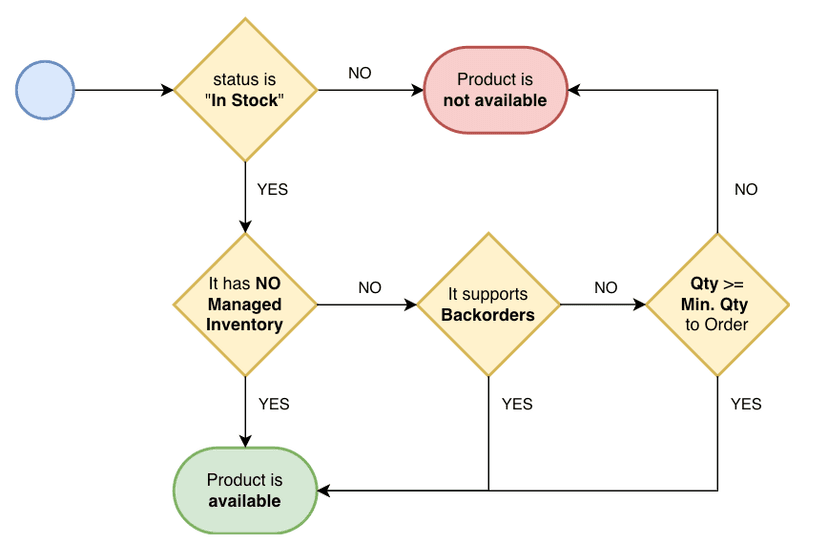
For simple and virtual products, they will be available if:
The stock status is 'In Stock' AND the product either has no managed inventory, supports backorders, or its quantity is greater than or equal to the minimum quantity required to order.
Inventory Behavior
The cart services will control the availability of the products in different moments:
- When an item is added to the cart.
- When an item is updated or replaced.
- When a cart is created with items included.
- When a cart is updated or replaced including its items.
- When a cart is placed to be converted to an order.
The inventory will update the stock qty available of a the involved products when a cart is confirmed to be converted to an order.
Definition of Availability:
Variants
- In the Variants section
Variants does not apply for Simple Products.
Related
- In the Related section
Related products are items that are often bought together or have a logical connection based on the product the customer is viewing. These recommendations are displayed on product pages and are designed to help customers discover additional items that might interest them based on their current selection.
To add related products to the product information follow this steps: - Use the products Selector to define the scope of the search. Available optios are:
- Related
- Not related
- All
- Use the Search text input box to find the products within the selected scope.
- Check/Uncheck the desired products from the resultset. Products will be saved once Save button is clicked.
Upsells
- In the Upsells section
Upselling is the practice of encouraging customers to purchase a more expensive version of the item they are considering. The goal is to increase the overall value of the sale by offering a superior product, often with enhanced features or benefits.
To add upsells to the product information: - Use the products Selector to define the scope of the search. Available optios are:
- Selected
- Not selected
- All
- Use the Search text input box to find the products within the selected scope.
- Check/Uncheck the desired products from the resultset. Products will be saved once Save button is clicked.
Crosssells
- In the Crosssells section
Cross-selling involves suggesting additional, complementary products that the customer might find useful alongside their primary purchase. The aim is to increase the total sale value by offering products that complement the item already being considered.
To add upsells to the product information: - Use the products Selector to define the scope of the search. Available optios are:
- Selected
- Not selected
- All
- Use the Search text input box to find the products within the selected scope.
- Check/Uncheck the desired products from the resultset. Products will be saved once Save button is clicked.
Attribute Families
- Add new sections from the Attribute Families set
By clicking on the + Add tab a list of Attribute Families will be shown. Select any item on the list to add new sections correspondong to the selected Families.
New Attributes and Families can be added in the Attributes and Attribute Families section.
Once the attribute family tabs have been added, you can select them to enter data for the attributes belonging to those families. - When all the changes were made, click on the Save button, or on Discard to reject the updates.